Jul 29 2009

Nightly Builds of Quasar Media Player available

Quasar Media Player

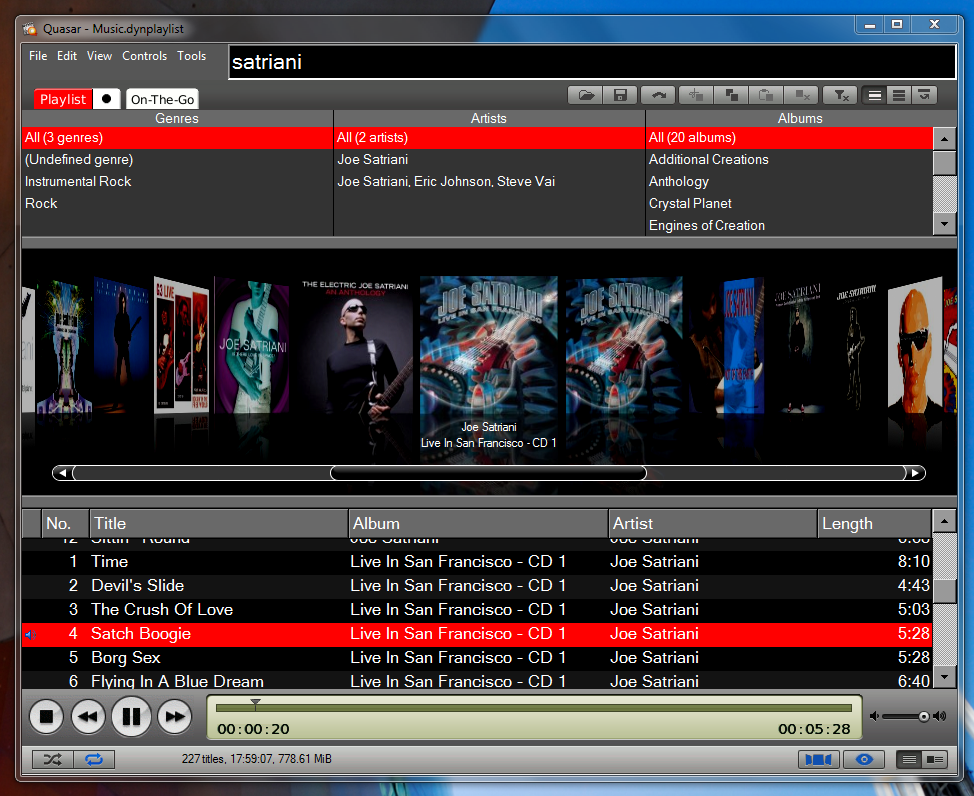
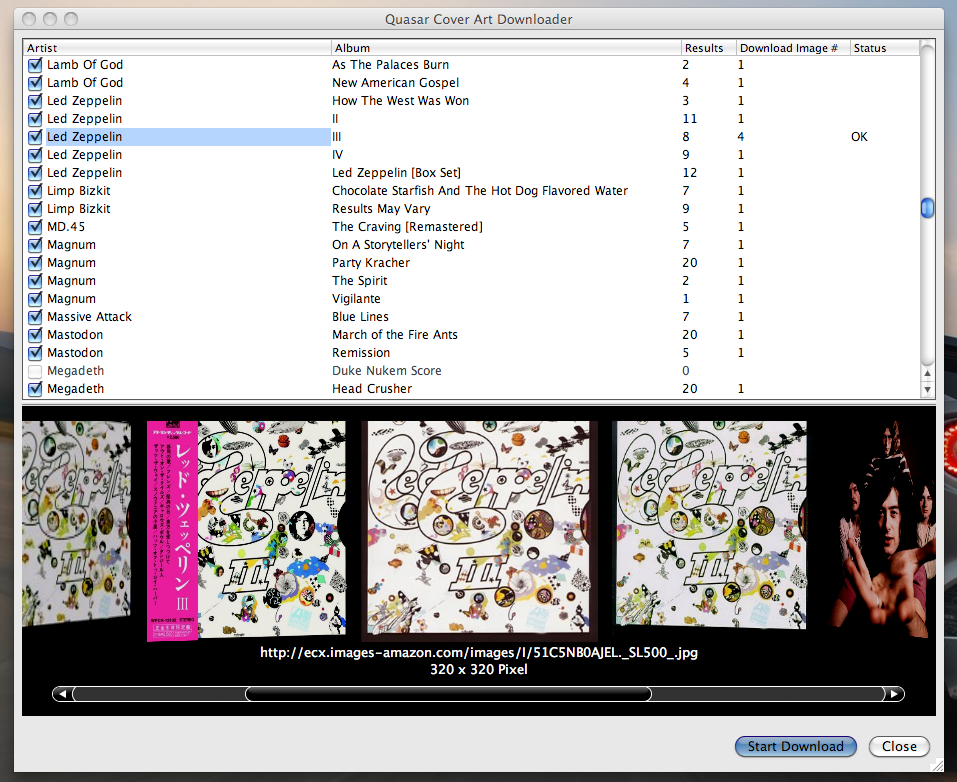
It’s been some time since the last update. In my previous post I mentioned I was in the process of setting up a nightly build system. This system has been running silently since May.
I guess it is finally time for me to officially announce the nightly builds of Quasar Media Player:

http://www.katastrophos.net/downloads/quasar/nightly/

Along with the most current sourcecode tarball, binaries are available for 4 platforms:
Windows (win32), OS X (universal binary), Sharp Qtopia and pdaXrom Linux (both for Zaurus PDA)
The Windows version comes in two styles: a generic setup (EXE) and a self-contained portable version (7z archive)

Enjoy and please leave a comment.


Mar 16 2009

Setting up the Inno Setup compiler on Debian

I’m currently setting up a nightly build system for Quasar on my Linux box which is running Debian. This system also cross-compiles Quasar for Windows.
The Windows version of Quasar is going to be available in two fashions: one self-contained, portable version and one version that can be installed.
I’m not a huge fan of installers. But when it comes to creating a setup program for a given Windows application I’m quite accustomed to Inno Setup having used it for years. Unfortunately there is no native Linux version of the Inno Setup compiler available for Linux. NSIS exists as package for Debian but I am not fond of using it, largely because I am a Delphi guy. :)
So, here is a small guide on how to get the Inno Setup compiler up and running on Debian:

First step is to install Wine either as super user or by using sudo:

sudo apt-get install wine

As normal user fire up your X server and your favourite terminal application and get the latest Inno Setup QuickStart pack:

mkdir /tmp/innosetup
cd /tmp/innosetup
wget http://files.jrsoftware.org/ispack/ispack-5.2.3.exe
wine ./ispack-5.2.3.exe

This will start the installer in Wine. Note, for the installation you will need a running X11 server since the installer obviously is graphical. If you have not set up Wine before, the default location C:\Program Files\Inno Setup 5 will install to ~/.wine/drive_c/Programme/Inno Setup 5.

Luckily the Inno Setup compiler offers a command line interface, ISCC.exe, which will run in Wine without the necessity of having a X server running. So it is ideally suited for automated runs.

Here is a simple wrapper shell script called iscc:

#!/bin/sh
unset DISPLAY
scriptname=$1
[ -f "$scriptname" ] && scriptname=$(winepath -w "$scriptname")
wine "C:\Program Files\Inno Setup 5\ISCC.exe" "$scriptname" "$2" "$3" "$4" "$5" "$6" "$7" "$8" "$9"

I installed this script in my local bin directory (~/bin) and added it to the PATH environment variable.
This will allow running the Inno Setup compiler from anywhere and it also makes it very easy to integrate into a build script. You can even feed a script via stdin, e.g. something like:

iscc - < ./myscript.iss

Mar 15 2009

Implementing the “Reveal In Explorer” functionality

Update: I seems like Microsoft changed the behavior of the Explorer’s command line parameters in Vista and Windows 7. Below is the fixed version of my code that addresses the problem.
So, I was wondering the other day how to implement a functionality similar to Firefox’s “Open Containing Folder” or OS X’s “Reveal In Finder”.
It turned out to be extremely simple. Here is the Pascal/Delphi-Code:

uses
  ShellAPI;

function RevealInExplorer(const Filename: string; ShowExplorerWithFoldersBar: Boolean = True): Boolean;
var
  Params: string;
begin
  if FileExists(Filename) or DirectoryExists(Filename) then
  begin
    Params := Format('/select,"%s"', [Filename]);

    if ShowExplorerWithFoldersBar then
      Params := '/e,' + Params;

    ShellExecute(0, 'open', 'explorer.exe', PChar(Params), nil, SW_SHOWNORMAL);

    Result := True;
  end
  else
    Result := False;
end;

Jan 10 2009

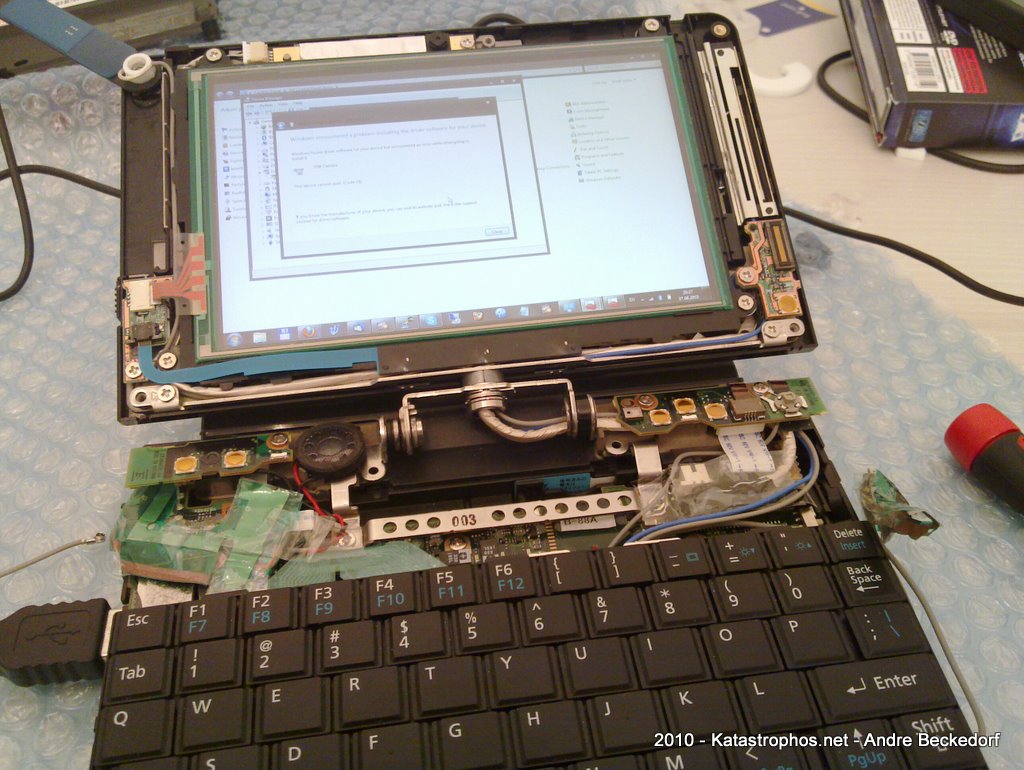
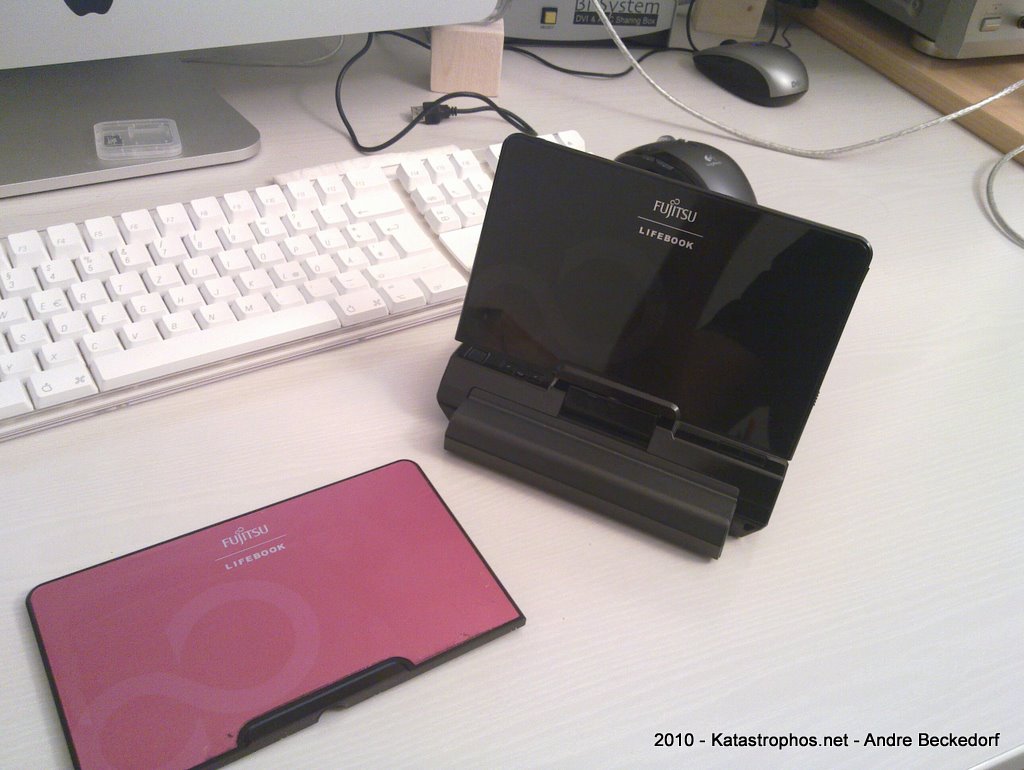
Upgrading the Fujitsu U810 with 64GB SSD

I recently decided to upgrade my Fujitsu U810 with a solid state drive.
Unfortunately, since the U810 only offers a PATA interface the options are quite limited to just a few high-priced (compared to SATA) 1.8″ SSD models by either Samsung, Sandisk (SanDisk SSD UATA 5000, discontinued) or MTRON (MSD-PATA3018-032-ZIF2 et al.).
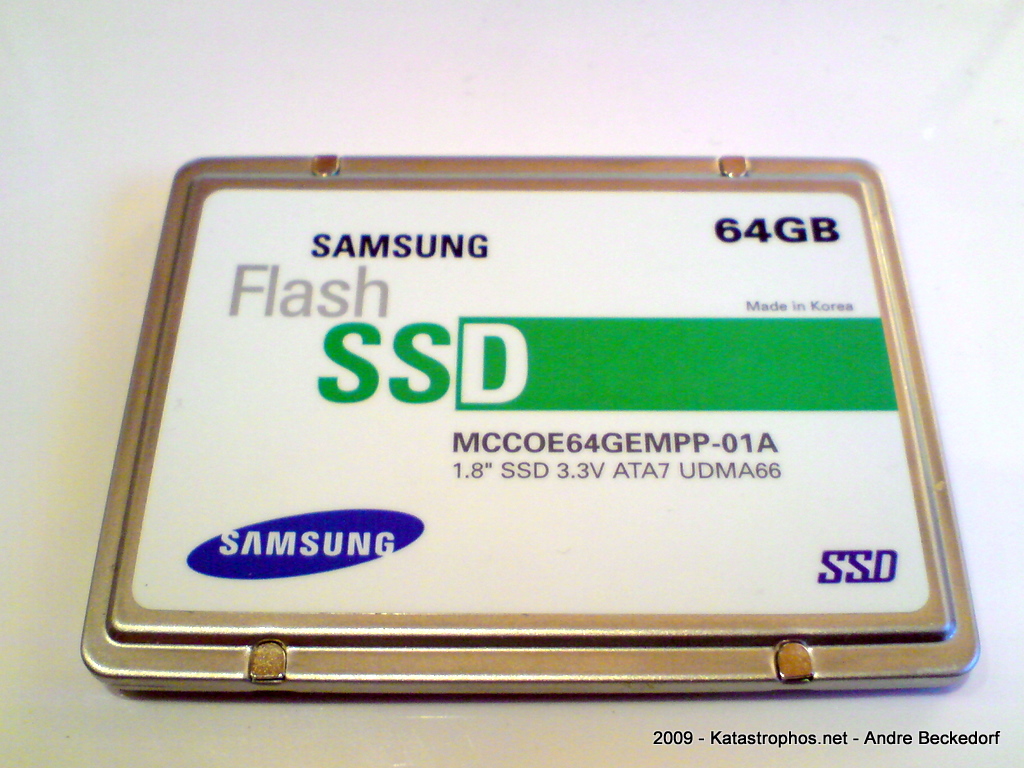
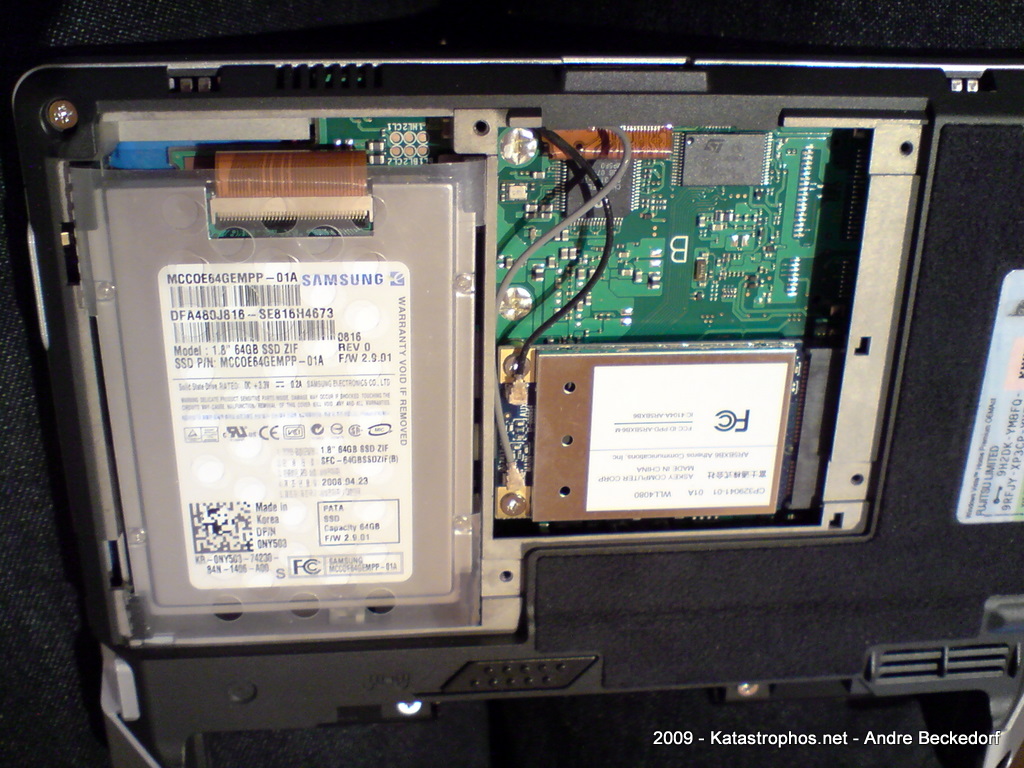
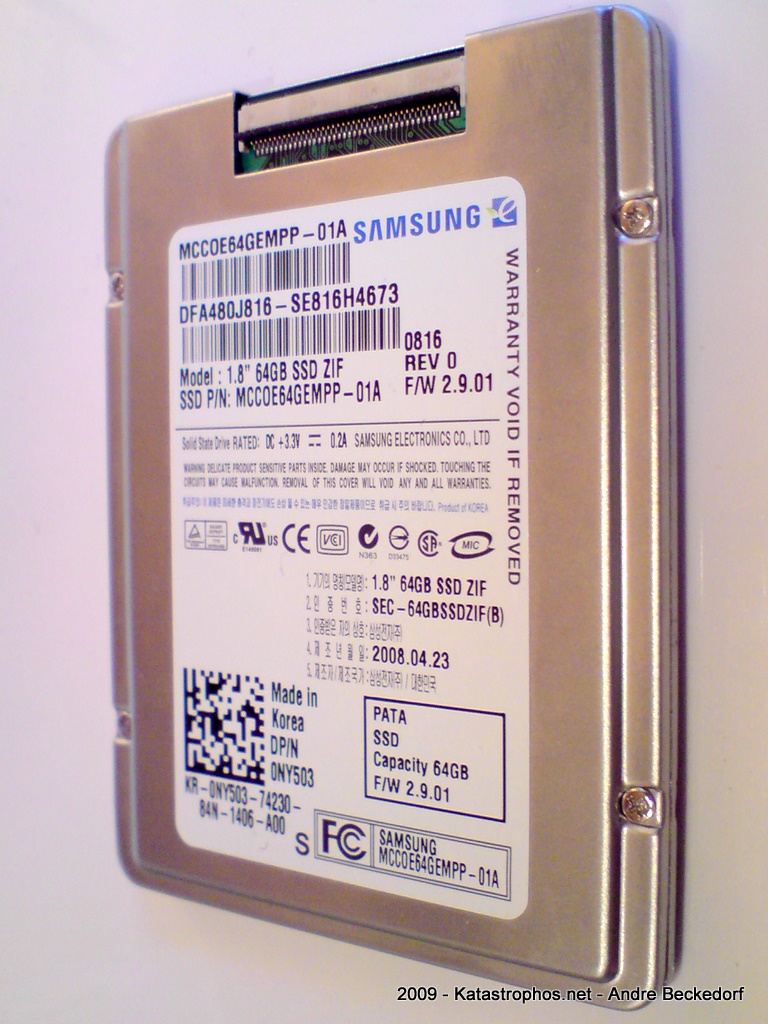
I went for a 64 GB SLC drive manufactured by Samsung. The exact model name is MCCOE64GEMPP. The same 1.8″ PATA-drive is available as bulk version without the metal enclosure that is protecting the PCB: MCCOE64GQMPQ

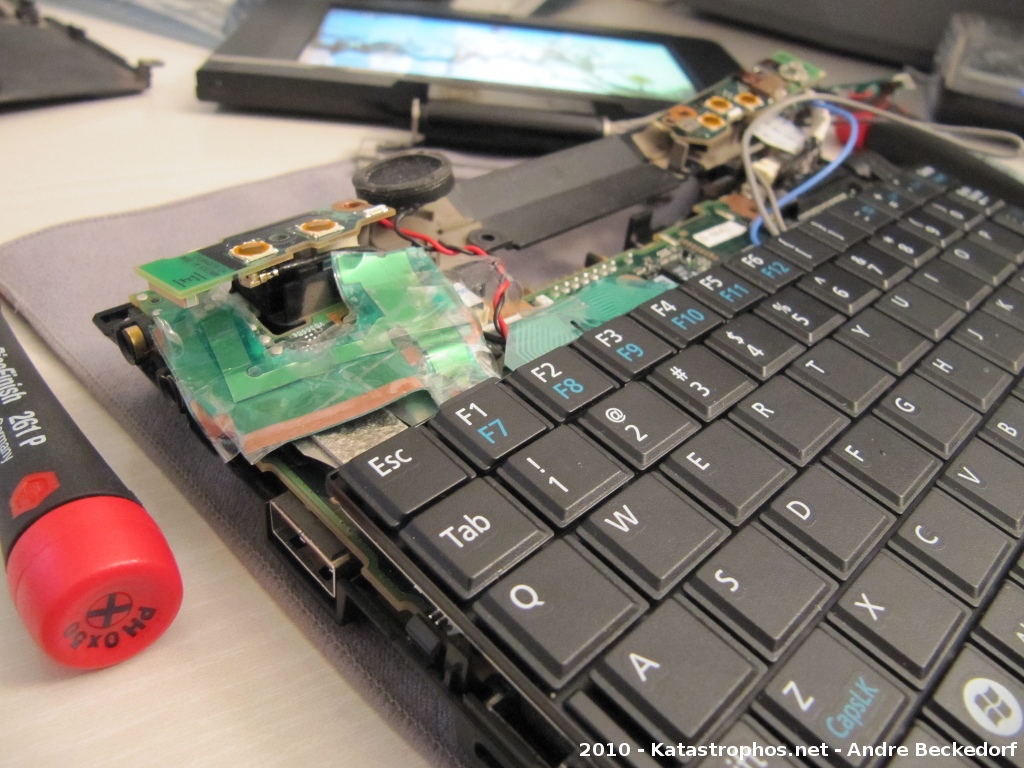
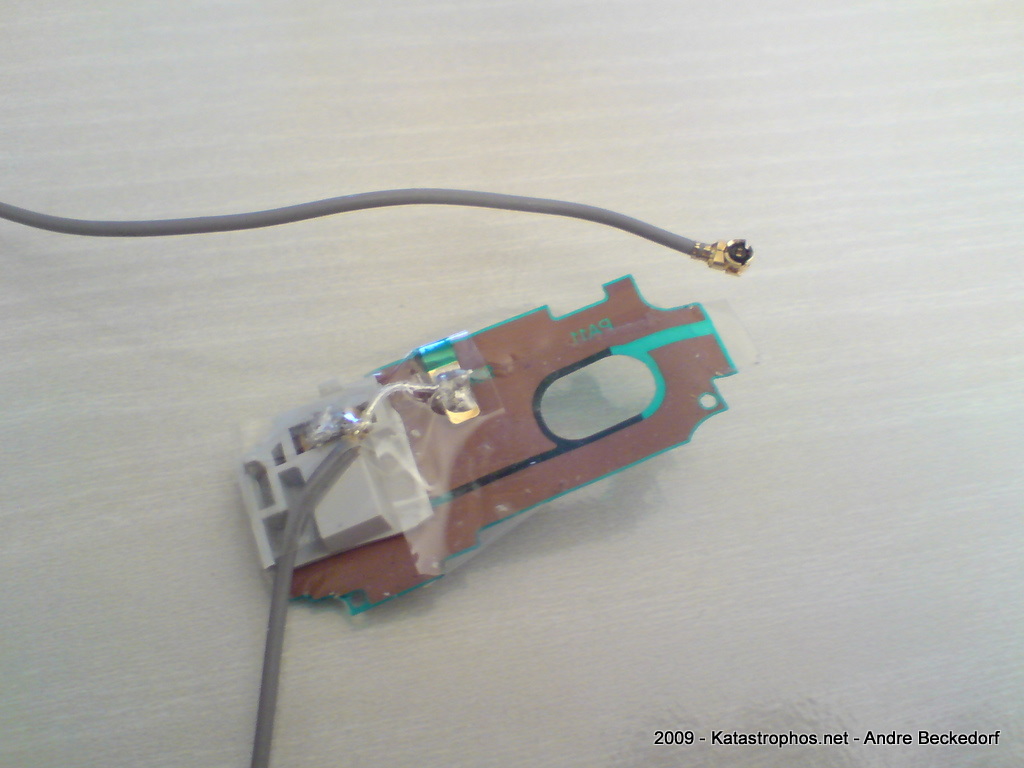
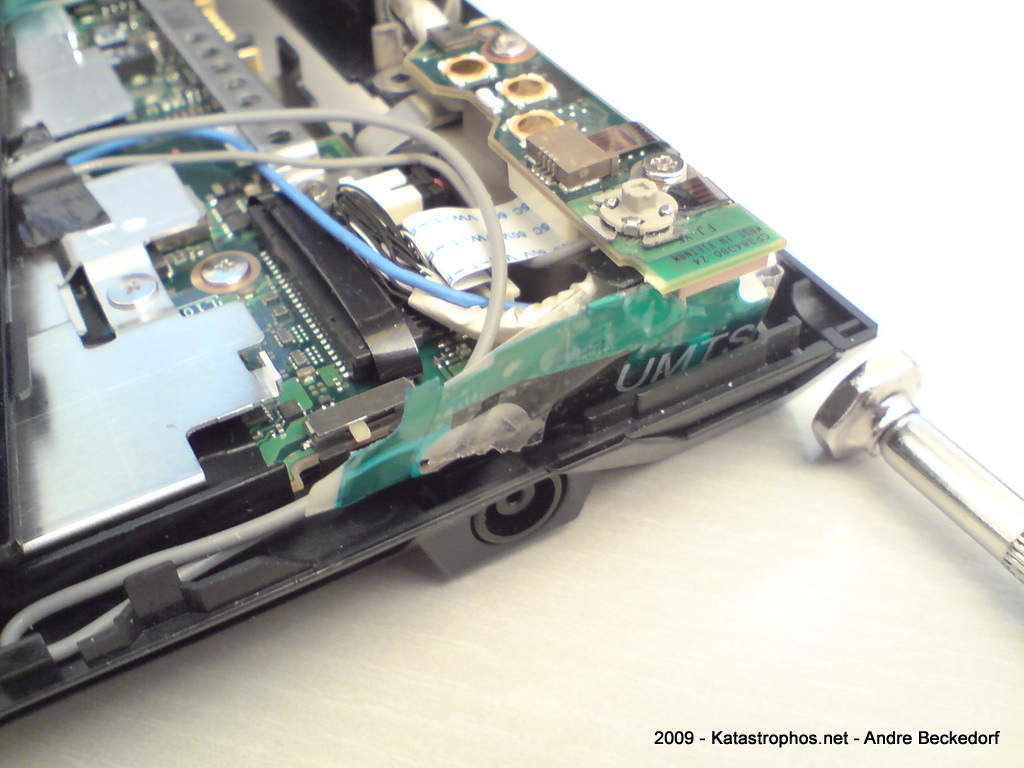
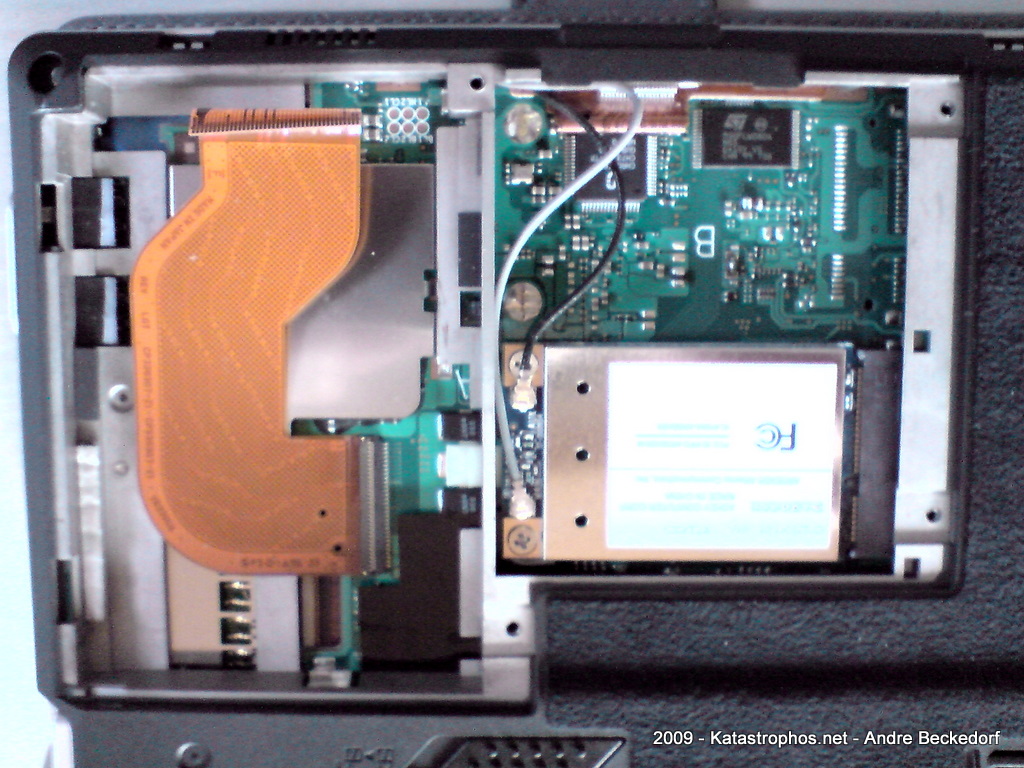
Here are some photos of the drive itself and how to install it in the U810. Note, the drive is 5 mm high and will fit into the U810 without any modifications.
Also keep in mind that the U1010 has a different connector (50-pin IDE instead of ZIF), so these ZIF-drives will not work here. However, there are reports on UMPC Portal that suggest that it is possible to get a replacement connector flat band cable for the U810 that is the 50pin IDE cable, so I guess it is also possible the other way around for the U1010.


dsc00321dsc00323
dsc00238dsc00324

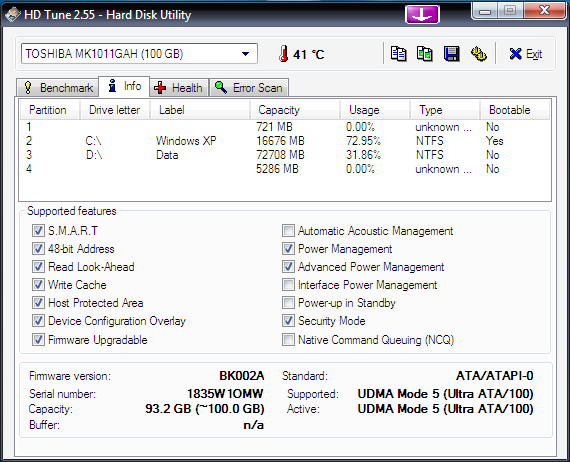
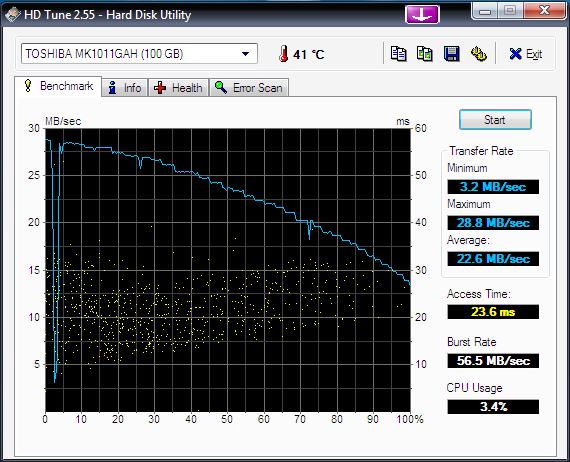
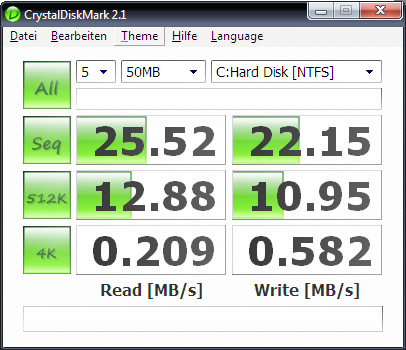
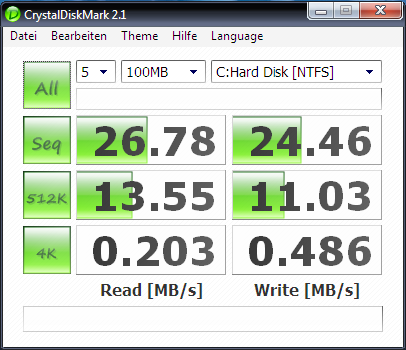
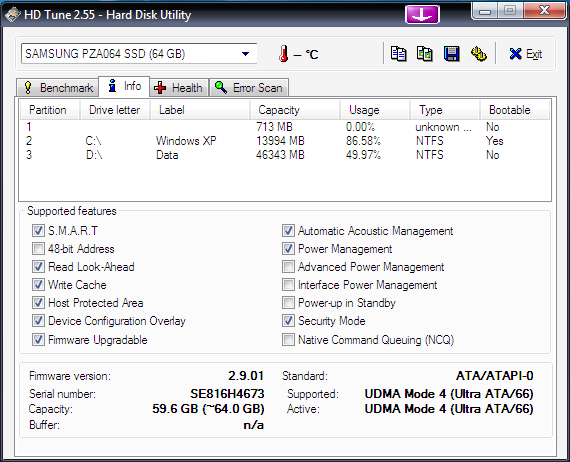
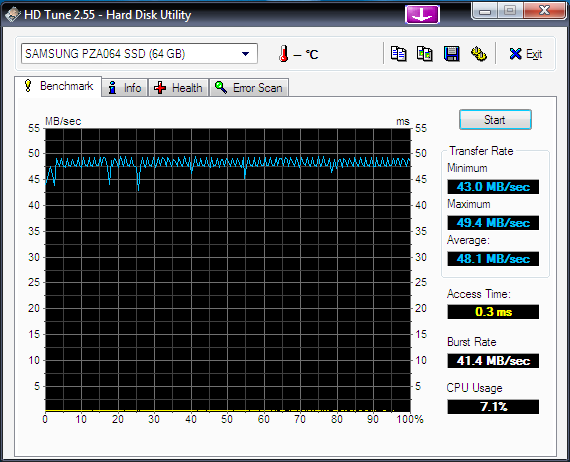
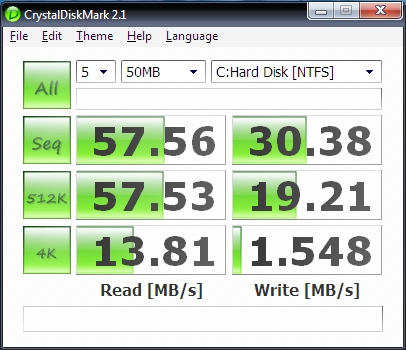
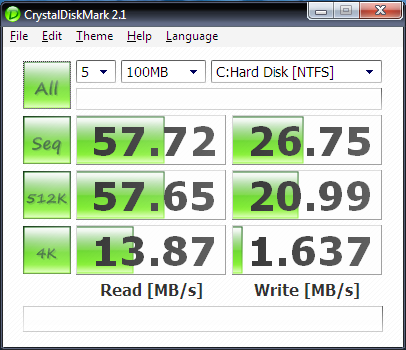
Here are the obligatory benchmarks comparing the new SSD against the old Toshiba MK1011GAH 100 GB hard drive that was previously installed in the U810:


Toshiba MK1011GAH:

hdtune_info_toshiba_mk1011gahhdtune_benchmark_toshiba_mk1011gah
crystal50crystal100crystal500


Samsung MCCOE64GEMPP:

hdtune_info_samsung_pza064_ssdhdtune_benchmark_samsung_pza064_ssd
crystal50_samsung_pza064_ssdcrystal100_samsung_pza064_ssdcrystal500_samsung_pza064_ssd

Needless to say that applications cold-launch a lot faster with the SSD. (Firefox with 12 add-ons: ~10 s before -> ~6 s after, Chrome: ~3 s before, ~1 s after, Thunderbird: ~8 s before -> ~3 s after).

Startup time was reduced quite a bit but not dramatically. However, returning from sleep and hibernate saw a huge improvement. Unfortunately I can not provide values of the old drive, so no comparison.
I did not notice longer battery run times. However, the whole system runs a lot cooler because the SSD naturally does not produce heat as extensive as the HDD did.

I am satisfied with this upgrade – especially since it has boosted compile-times when working with CodeGear RAD Studio and Delphi – due to the great performance when accessing, reading and writing small files. Your mileage may vary.


Jan 3 2009

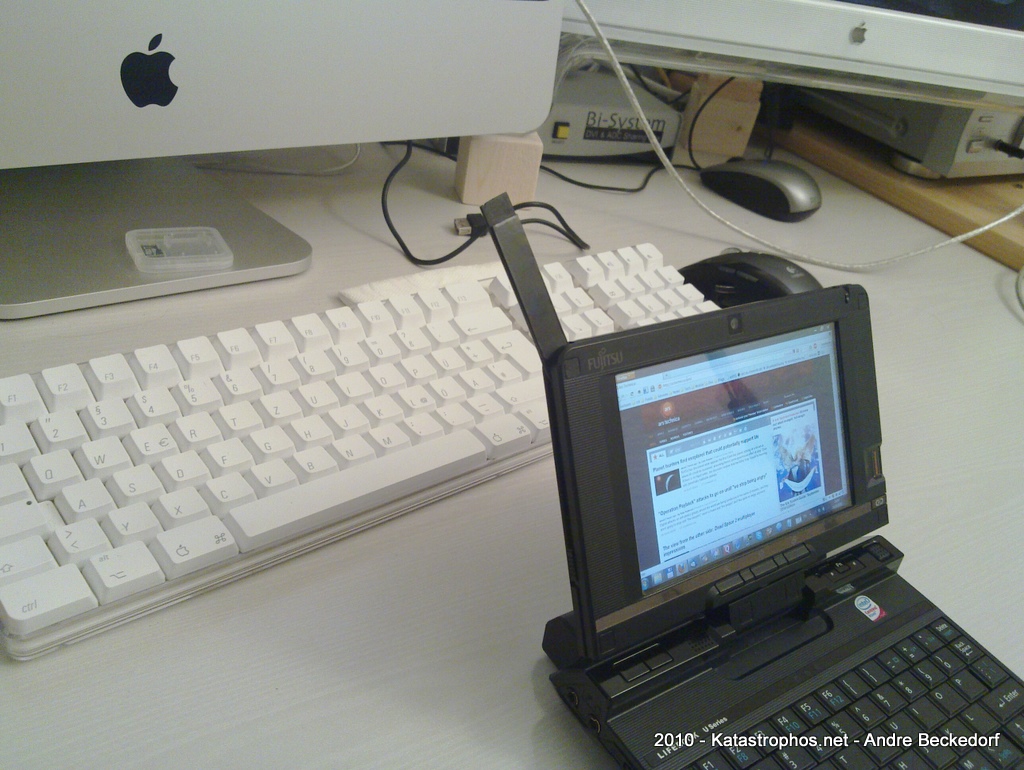
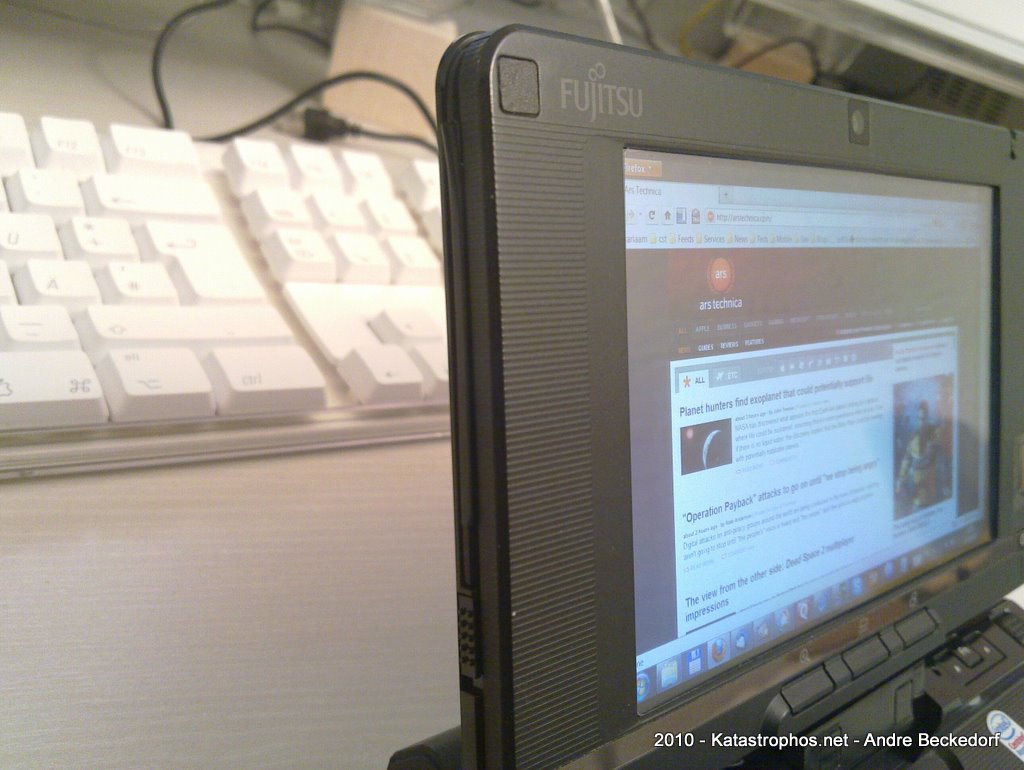
Installing Windows 7 on Fujitsu U810, U1010, U2010, U2020

UPDATE: This also applies to Windows 7 Final/RTM (7600) and will also work for the U820/U2010/U2020 models. Check my comment for additional information on what needs to be installed on those models.

I just installed Windows 7 Business Build 7000 on my U810. It is quite nice actually and seems to run faster than Vista.

windows7capture2windows7capture1

I installed the Vista drivers from the driver CD. The Setup.exe on the driver CD will complain that the operating system is unsupported. To circumvent this problem, just start the setup in Vista compatibility mode:
Right-click on “Setup.exe”, “Properties” -> “Compatibility” -> “Run this program in compatibility mode for:” “Windows Vista”.

Install these items:

Drivers
04. Button Driver
05. Camera Driver
07. Fingerprint sensor (driver)
08. FUJ02B1 Device Driver (HotKey Driver)
09. FUJ02E3 Device Driver (System Extension Driver)
11. Pen Driver
12. Pointer device driver

Utilities/Applications
03. Button Utilities
07. Fujitsu System Extension Utilities

I could not get the Auto-Rotation feature to work. Also, you’ll probably have to calibrate the touch screen.
I also disabled the power management feature of the FCL USB Pen Tablet in Device Manager (Right-click on “Human Interface Devices/FCL USB Pen Tablet”, “Properties” -> “Power Management” -> Disable “Allow the computer to turn off this device to save power”). This improves the response of the touch-screen/tablet.

Oh, and BTW, Windows 7 “only” uses 7.5 GB of disk space, whereas Vista uses 15 GB I think.


Dec 30 2008

Lazy source code comment stunts

Double-Slash-Whole-Block-Commenting

Here is a simple way to disable or enable whole code blocks with just two slashes:

PHP / C++:

/*
  Block (commented block)
//*/
///*
  Block (active block)
//*/

Object Pascal/Delphi:

(*
  Block (commented block)
//*)
//(*
  Block (active block)
//*)

Alternatively you can use { and } in the Object Pascal/Delphi example.


Double-Slash-Whole-Block-Switching (Object Pascal/Delphi only)

The Object Pascal dialect used in Delphi supports three ways of commenting code, two for commenting whole blocks ( { } and (* *) ) and one for commenting lines ( // ).
We can exploit this feature to switch between two code blocks easily and fast:

Block 2 is in the enabled state:

{
  Block 1  (commented block)
(*}
  Block 2  (active block)
//*)

Note, I am just adding two slashes in front of the first comment block to activate it again – similar to Double-Slash-Whole-Block-Commenting trick above. This will also magically disable the second block due to the way the comment marks are arranged:

//{
  Block 1  (active block)
(*}
  Block 2  (commented block)
//*)

These tricks are probably applicable to other programming languages as well. Please let me know.


Mar 15 2008

Q…/Free: Bug in QProcess writeToStdin

All right, this post is just to stop somebody else’s suffering in figuring out why writing to stdin in QProcess on Version 3.3.x-8 of Q…/Free doesn’t work on Windows. Well, actually it works but just for the first line you write to stdin. There is a bug in qprocess.cpp at line 730:

void QProcess::writeToStdin( const QString& buf )
{
    QByteArray tmp = buf.local8Bit();
    tmp.resize( tmp.size() - 1 ); // drop the implicit \0
    writeToStdin( tmp );
}

should be:

void QProcess::writeToStdin( const QString& buf )
{
    QByteArray tmp = buf.local8Bit();
    tmp.resize( buf.length() );
    writeToStdin( tmp );
}

Verision 3.3.7-7 includes the latter method, same as the latest Qt 4.3 sources. So, it’s actually a regression in 3.3.x-8. If you require the latest Qt 3 / Q…/Free for your open source application and need to write to some other processes’ stdin, you can just use a wrapper workaround that uses the latter method and directly uses writeToStdin( const QByteArray& buf ) instead of the QString variant.


Mar 10 2008

rdesktop: Connect to Windows 7 and Vista with ClearType font smoothing enabled

So Windows Vista finally allows to enable ClearType font smoothing for Remote Desktop / Terminal Services sessions. Update: Windows XP SP3 does too!
If you try to connect to a machine running Windows XP SP 3 or later using rdesktop, you won’t get smoothed font typing since at the time of this writing rdesktop does not officially offer an option to control this feature. However, here is a workaround:
› Continue reading


Dec 24 2007

QScrobbler

QScrobbler

Today I’m releasing QScrobbler: a Last.fm / Audioscrobbler add-on for Quasar Media Player.

As with Quasar, I’ve been using QScrobbler for almost a year now and finally decided it is ready for the public. ;)
For more details please visit the project’s homepage here.


Oct 6 2007

Quasar Media Player

Quasar Media Player

Finally! Almost a year after the first mentioning of my new media player for the Sharp Zaurus and after several development hiati, I’m today officially releasing the Quasar Media Player for SharpROM- and pdaXrom-based distributions.
For more details please visit the project’s homepage here.